
See what’s working with redesigned reporting. Stay on top of stock. Follow up from a clearer Inbox. Grow booking value. Put DappleAI to work.
Available on iPad and web from 6 November 2026. Patient Agent and Front Desk Agent are in preview for clinics using DappleAI.
It’s been a busy October at DappleOS. Appointment Add-ons, Waiting List Automation and Leads give you more ways to turn demand into revenue. Our new reporting experience helps you see what’s working and where to focus next.
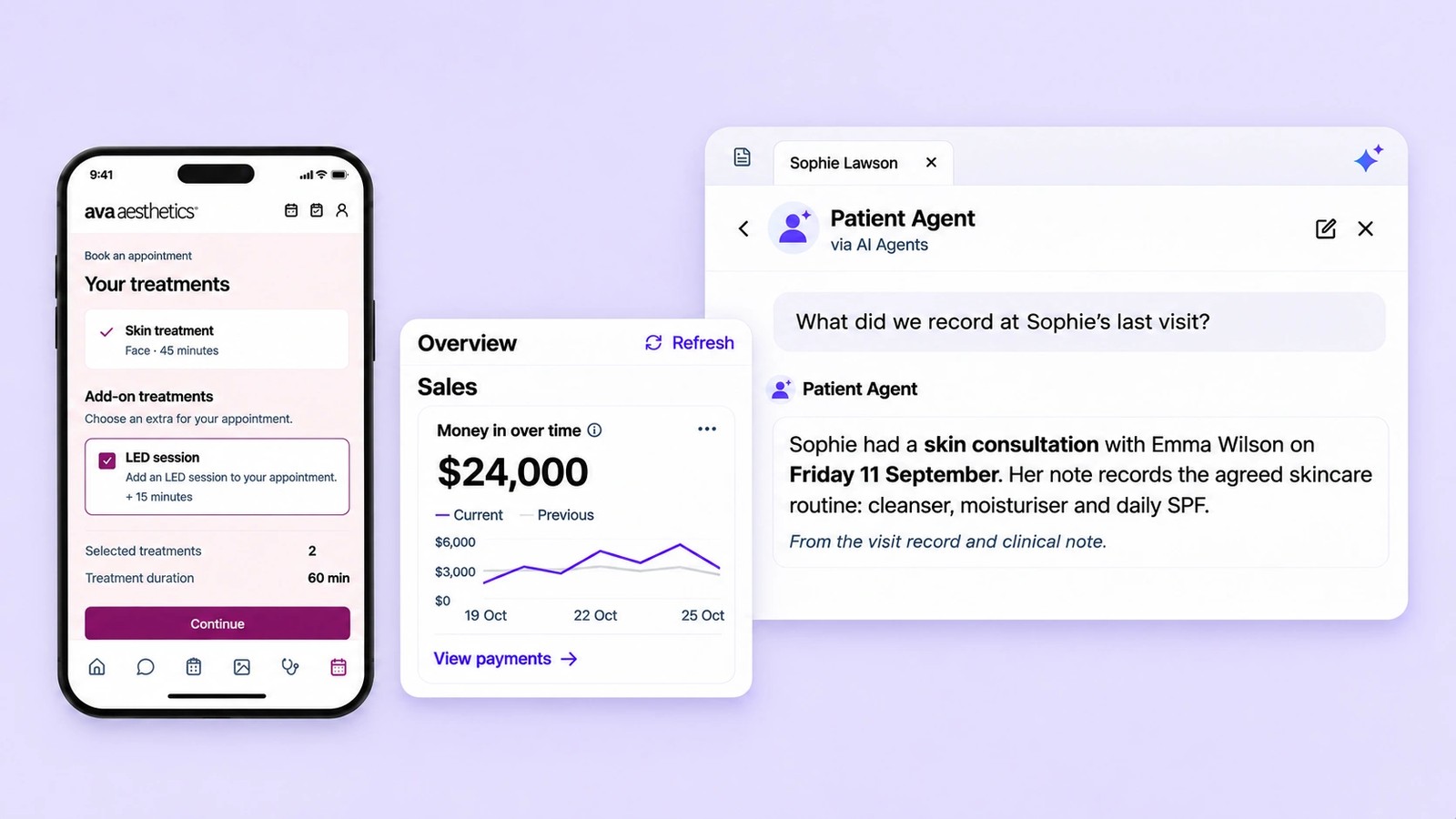
We’re also introducing Patient Agent and Front Desk Agent, powered by DappleAI. Find recorded patient information and work through reception tasks in conversation. During this customer preview, you can put both agents to work while we collect feedback and improve the experience.
AI data is processed locally in Australia, with zero data retention for AI processing. Your data is not used to train AI models.
Thank you to every customer who has shared ideas and feedback with us. Your input helps shape what we build and how we make your clinic day easier.
Need help getting started? Select the sparkle icon in the DappleOS header and choose Help Agent, or use the setup button beneath any feature in this article. Tell it what you want to set up, and it will guide you through the steps.
There are 37 updates to explore this month. Here are the highlights.
The big updates, at a glance
- A new reporting experience: explore five redesigned reports to understand sales, appointments, customers and team performance.
- Stock dashboard and updated stock forecasting with DappleAI: see what needs attention today, then look ahead at demand, deliveries and what to order.
- Smarter automations: explore the dashboard and suggestions, then use split testing to compare approaches against outcomes such as bookings.
- A clearer Inbox: write email and SMS, add relevant information and schedule follow-up from one workspace.
- Patient feedback: hear how each visit went, give concerns an owner and follow through.
- Appointment Add-ons and Waiting List Automation: offer relevant extras and refill cancelled slots to grow revenue from the demand you already have.
- Leads: give every enquiry an owner and a clear next step towards a first booking.
- Our new and improved Opportunities engine: uncover potential revenue and timely reasons to reconnect, from an unfinished treatment plan to a package ready for renewal.
- Clinical Library: keep standard operating procedures (SOPs), protocols and dose ranges together, with guidance within reach while your team writes notes.
- Patient Agent · Preview: find recorded patient details with sources, and get a 30-second summary focused on Clinical or Front Desk work.
- Front Desk Agent · Preview: work through appointment changes, patient messages and arrival checks in one conversation, with your team confirming actions.
Luke
Co-Founder & Chief of Product
In this release
AI agent previews
Appointments and revenue
- Waiting List Automation
- Appointment Add-ons
- Online booking order and categories
- Practitioner choice and allocation
- Improved availability finder
- Abandoned booking recovery
- Our new and improved Opportunities engine
Clinical care
Leads and marketing
- Leads
- Visitor tracking from clinic messages
- Tracking consent
- Meta conversions
- Customer attribution
- Online booking analytics
Stock and reporting
- A new reporting experience
- Appointment Book Stats & Reporting
- Sales targets for your whole team
- Stock dashboard
- Updated stock forecasting with DappleAI
- Stock tracking by room
- Purchase-order emails and shared drafts
- Everyday stock controls
Patient experience
Campaigns and journeys
- Automation dashboard and suggestions
- Automation split testing
- Journey preview
- Scheduled broadcasts
- Journey variables
- Smart send channel order
- Promotion code used condition
A new way to work in DappleOS.
Ask Patient Agent about recorded patient information, or describe a reception task to Front Desk Agent. Both work in conversation alongside the page you are using.
Select the sparkle icon in the header bar from any page in DappleOS to open the agents sidebar. Start a conversation with a patient record open and Patient Agent automatically picks up that patient’s context, so you can ask about the person in front of you without finding their record again. You can also launch Patient Agent directly from the new 30-second patient summary.
Patient Agent · Preview
Ask your record. Stay with your patient.

The detail you need can be buried in a previous note or an existing plan. Finding it takes your attention away from the person in front of you.
With the Patient Agent preview, you can ask about recorded patient information in the sidebar while you work, read the answer with its source and follow up with a more specific question. Bring past visits, existing treatment plans and outstanding forms into focus without rebuilding the history yourself.
Your 30-second summary. The right focus for your role.
Reception and practitioners need different details before the same visit. Find the new 30-second patient summary on the patient’s Home dashboard. Powered by Patient Agent, it has Front Desk and Clinical modes, so each team can get up to speed with the information relevant to their work.
- Front Desk mode brings the next appointment, outstanding balances, available credit and required forms into focus, alongside recorded plan and package follow-up. Prepare for the arrival with less checking across the record.
- Clinical mode focuses on recorded allergies and alerts, medical history, previous treatment and notes, plus consent and script status for the next appointment. Spend less time piecing together the history before the consultation.
Front Desk mode is a view of the summary. Front Desk Agent is the separate assistant that helps you work through reception tasks.
The summary starts in the mode that matches your role, and you can switch modes on the card. Review the source details, then select a suggested follow-up question to launch Patient Agent directly. The patient’s context carries into the conversation, so you can keep going without repeating who you’re asking about.
The summary and Patient Agent describe recorded information. Clinical decisions stay with your team.
Explore Patient Agent Explore the 30-second patient summary Learn how to set up with Help Agent
Front Desk Agent · Preview
Say what needs doing. Keep the day moving.
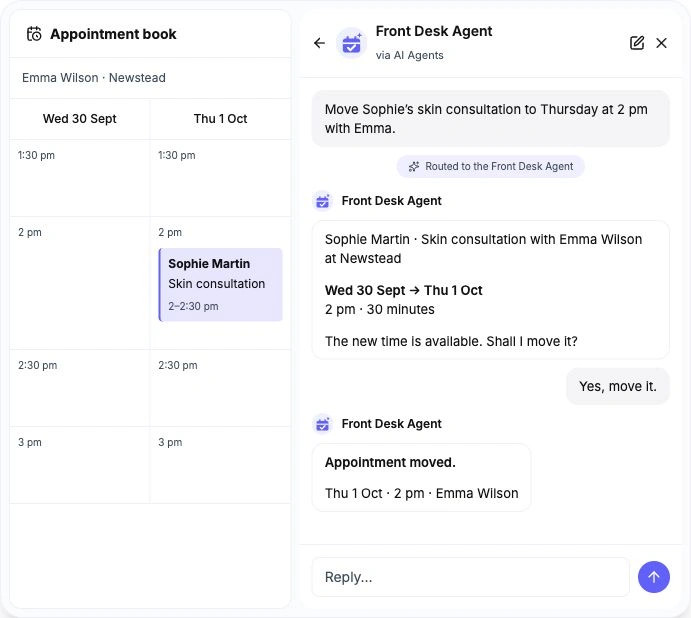
A patient is waiting while appointments change, forms need checking and messages need sending. Moving between those tasks can slow the next step.
With the Front Desk Agent preview, you can bring booking details, patient messages and arrival checks into one conversation. Review an appointment move, confirm it, then review and approve the patient message as a separate action.
Less switching between tasks. A clearer next step for reception.
Explore Front Desk Agent Learn how to set up with Help Agent
Fill the gaps. Keep the book moving.
Fill an opening. Recover an unfinished booking. Find more value in the demand you already have.
Waiting List Automation
An opening. A new opportunity.
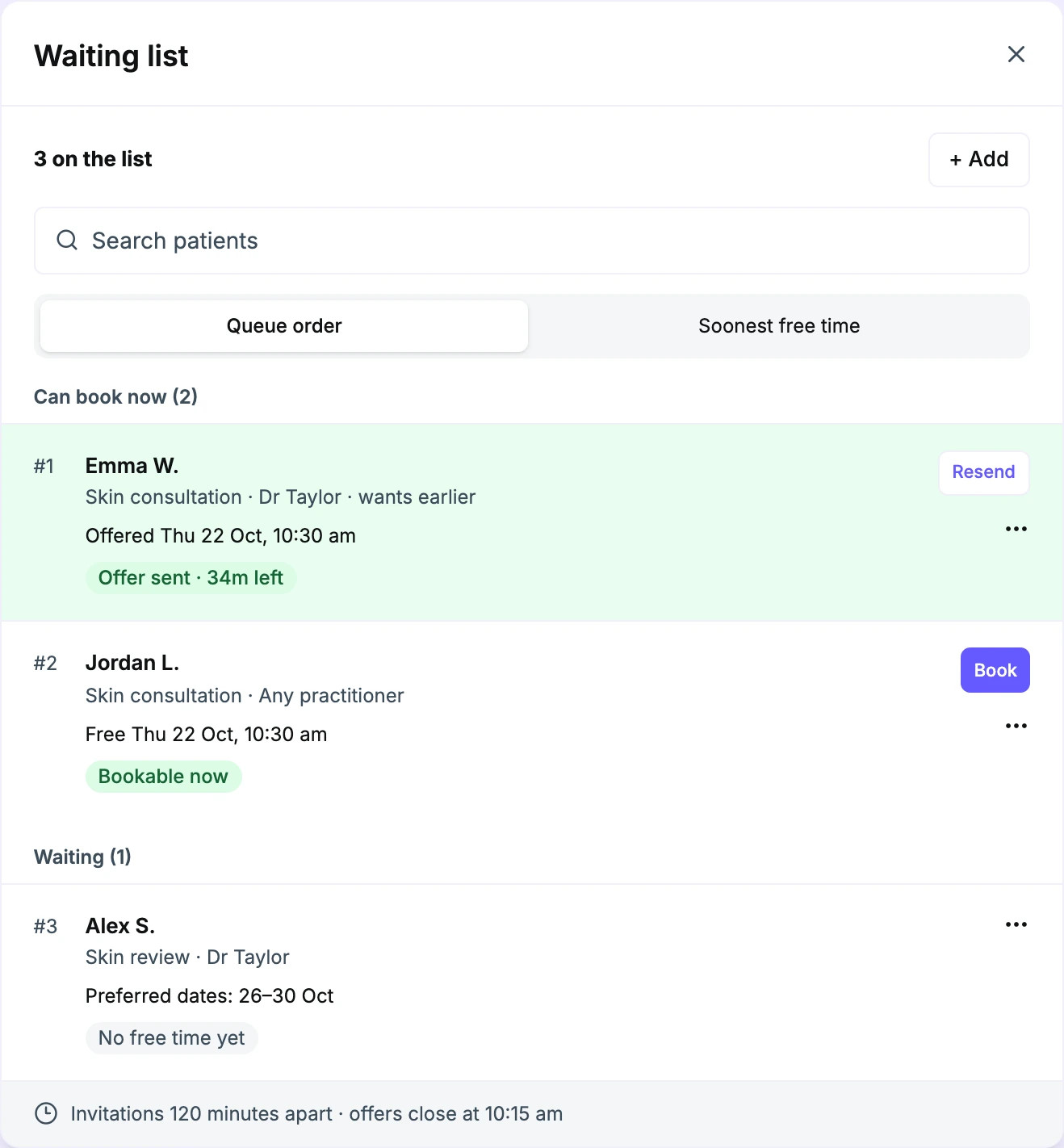
A cancellation leaves you with time to fill and revenue to recover. With Waiting List Automation, you can automatically offer the slot by SMS to matching patients on your waiting list, with less ringing around for your team.
Review your offer message and start the automation. Matching takes account of treatments, location, practitioner preferences and availability. Choose staggered invitations or an exclusive response window for each brand. Staggered invitations can overlap, with the first acceptance securing the time. Exclusive offers give one patient a response window before moving on.
Stay in control from the Appointment Book. See offer status and a bookable badge, then use Book or Move here where available. Open the Waiting List Offers report to see which offers became appointments.
Put your waiting list to work. Turn empty appointment time into another opportunity for revenue.
Explore Waiting List Automation Learn how to set up with Help Agent
Appointment Add-ons
Make every booking go further.
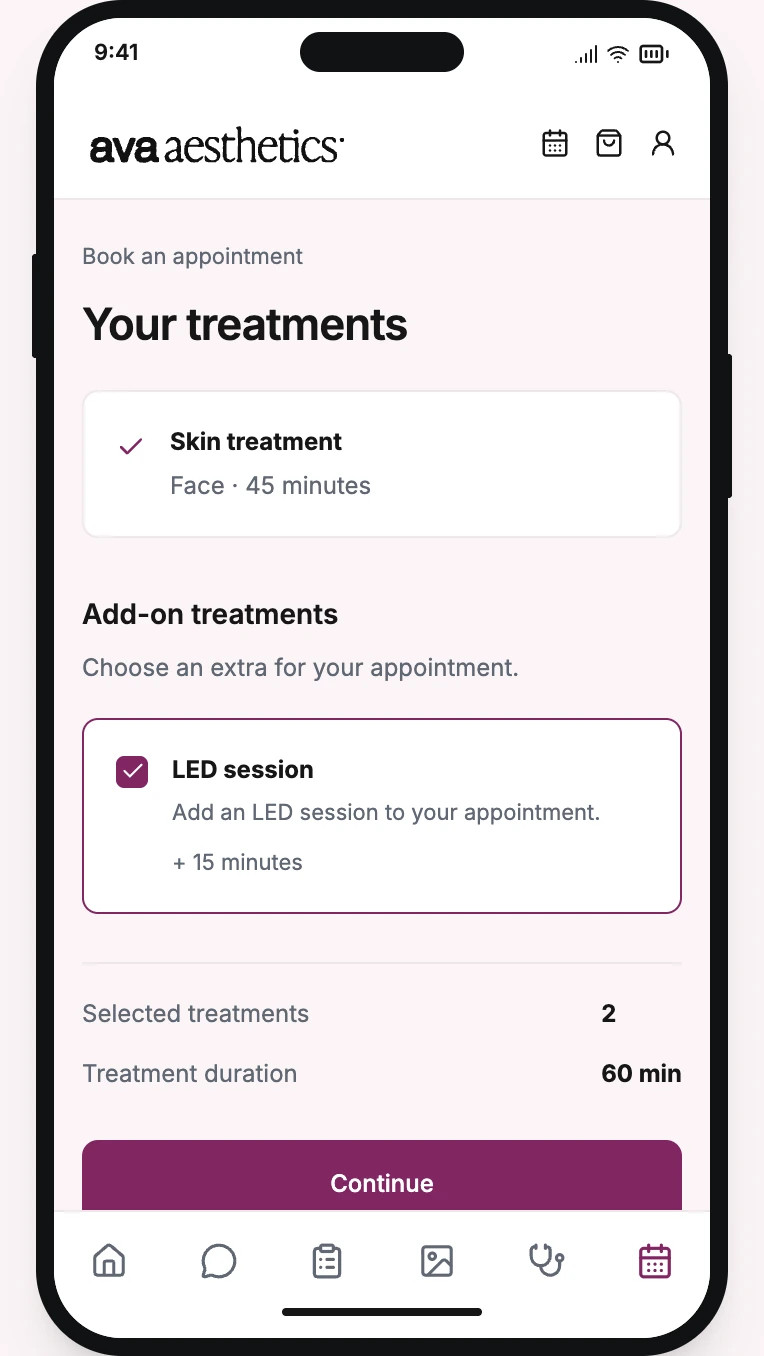
Relevant extras are easy to miss when they sit outside your booking flow. You can offer add-ons as patients book, creating more revenue opportunities from the appointments already coming in.
Choose which add-ons to offer with each treatment and explain the options. Patients decide what to include. Selected add-ons carry into the appointment details, subject to your clinic’s availability rules.
A clearer offer at the right moment. Less reliance on another conversation at reception.
Explore Appointment Add-ons Learn how to set up with Help Agent
Online booking order and categories
Your booking menu. In your order.
An alphabetical list can bury the treatments you want patients to find. You can organise your online booking menu into categories, then choose the order of those categories and the treatments within them, separately for each brand.
An admin opens Settings → Marketing & Growth → Online Booking & Portal, selects the brand and uses Online booking order to drag categories and treatments into place. Categories come from each treatment’s Public tag, or its main Tag when no named Public tag is set. Update those tags in treatment setup to change how your menu is grouped.
Lead with your signature treatments. Make the menu easier to scan and give patients a clearer path to what they want to book. Your existing rules still control which treatments each patient can book online. Use Reset to A to Z to return to alphabetical ordering.
More booking controls. One place to manage them.
The Online Booking & Portal settings page brings each brand’s booking rules together. Choose whether to show the practitioner selector or require a choice, set same-day booking and minimum-notice rules, and manage stored-card requirements. You can also enable the referral-source question and edit booking and confirmation messages.
Select the brand, make your changes and save each section. Keep the booking experience aligned with the way that clinic works, with less searching through settings.
Explore online booking Learn how to set up with Help Agent
Practitioner choice and allocation
Respect their preference. Make better use of your team.
Some patients want a particular practitioner. Others want the next suitable appointment. You can now manage both choices more clearly.
For bookings with Any practitioner, choose how each location allocates appointments: randomly, to the least-booked or most-booked practitioner, or by your priority order. Only practitioners available for that appointment are considered, and your existing booking rules still apply.
The appointment records whether the patient chose their practitioner or one was allocated. If your team tries to move a booking away from the patient’s chosen practitioner, a warning gives them a chance to check before continuing.
Balance your book with more intention. Keep a patient’s preference visible when plans change.
Explore appointment management Learn how to set up with Help Agent
Improved availability finder
Find the right time. With less searching.
Finding a suitable appointment can mean checking several practitioners, days and locations. The improved finder brings those options into one search in the Appointment Book.
Open Find availability and choose treatments, an appointment length, or both. Narrow the search to mornings, afternoons or evenings, and include the locations you want to check. See the next available time, a four-week calendar and the available slots grouped by location and time of day.
Filter by practitioner or adjust the appointment length from the results. Select a suitable time to open the booking form, with the search details ready to use.
Spend less time hunting through the book. Give patients a clearer choice while you have them on the phone or at reception.
Explore the Appointment Book Learn how to set up with Help Agent
Abandoned booking recovery
An unfinished booking deserves another chance.

An interruption can take an interested patient away from your booking flow. You can give them a simple way back, without asking them to start again.
The default booking flow saves eligible contact details and progress as the patient types. Set up a recovery journey to send a resume link after your chosen period of inactivity, respecting consent.
Less to re-enter. Another opportunity to complete the booking.
Availability is checked again when the patient returns; the link does not reserve the original slot. Recovery supports the default booking flow. Clinics using a customised booking flow keep their existing behaviour.
Explore online booking Learn how to set up with Help Agent
Our new and improved Opportunities engine
More potential. Already in your clinic.

An unfinished treatment plan. A package approaching renewal. Useful reasons to reconnect can stay hidden in your patient records.
With our new and improved Opportunities engine, you can uncover potential revenue and timely moments to reconnect with patients. Rules across your clinic’s records bring possible follow-ups into view, each with a reason and a next action.
Act, snooze or dismiss. Follow-through is recorded, so you can see what happened next.
Spend less time finding the next conversation. Give your team more opportunities to help patients complete treatment plans, renew packages and book again.
Explore Opportunities Learn how to set up with Help Agent
Your clinic’s knowledge. Right where it’s needed.
Give your team current guidance and a clear path to follow when care needs attention.
Clinical Library
Your guidance. Close at hand.
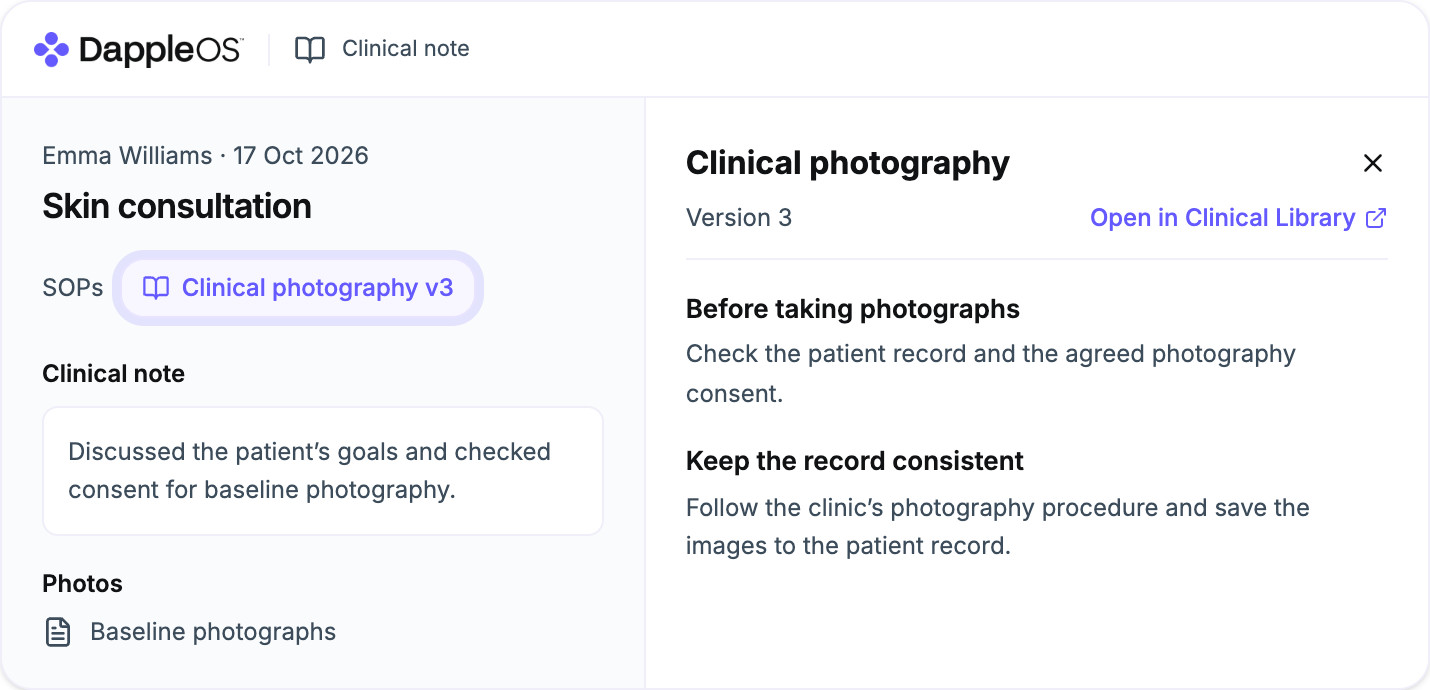
Scattered protocols mean more searching for your team and more work keeping everyone up to date. You can bring your SOPs, protocols and dose ranges into one Clinical Library.
Publish versions, link documents to treatments and set review dates. See who has acknowledged the current version. Give document owners a reminder when a review is due.
Give practitioners access to relevant SOPs directly from their clinical notes. Configured dose-range checks highlight values that need attention. Practitioners review the guidance and decide what is appropriate for each patient.
Upload a Word (.docx) or PDF SOP and use AI to prepare a draft, including dose-range suggestions where they can be extracted and matched to products. Check it against the original, resolve unmatched products and review the ranges before publishing. Less rebuilding from scratch.
Current guidance, easier to find. A clearer way to keep your team informed.
Explore Clinical Library Learn how to set up with Help Agent
Incident Register
A clear record. A clear next step.

When an adverse event needs attention, scattered notes make follow-up harder. You can bring the event, related notes and evidence together, along with product batch and lot details.
Use protocols and checklists to make required actions visible. Track ownership, status and progress in the timeline, so your team can see what has happened and what still needs to be done.
Clearer handovers. Less time piecing the record together.
Export a report when you need it. Your clinic remains responsible for any external submission.
Explore incident management Learn how to set up with Help Agent
See where patients come from. And what happens next.
Turn enquiries into next steps. See which channels bring patients in, and the value those relationships create.
Leads
Give every enquiry somewhere to go.
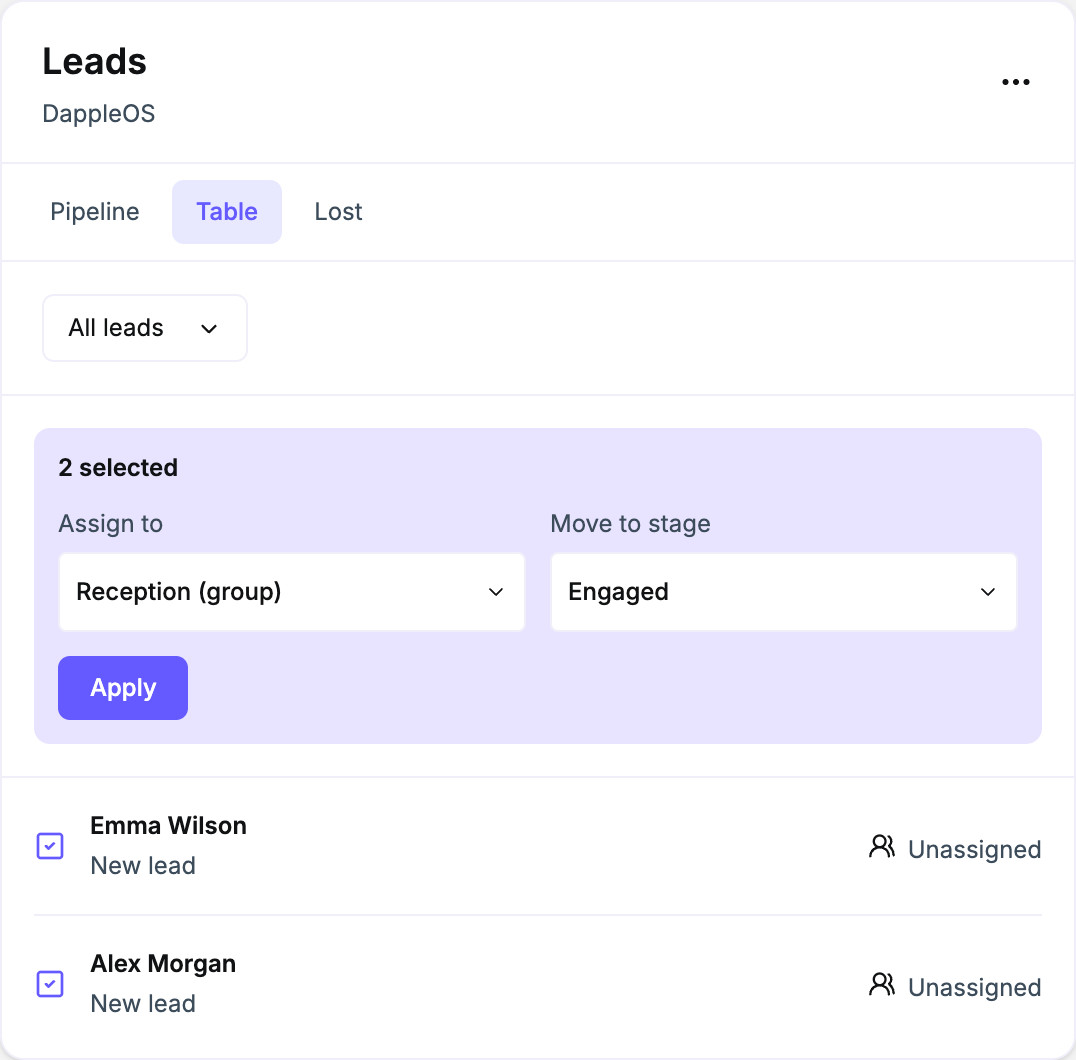
Interest can fade when the next step is unclear. With Leads, you can give your team one shared pipeline for turning enquiries into appointments.
Assign an owner. Set out your clinic’s stages. See where follow-up is due. When you convert a lead into a patient, their enquiry history stays with them.
Review sources, stages and outcomes in reporting. See where enquiries come from and how they progress.
More clarity for your team. More opportunities to turn interest into a first booking.
Explore Leads Learn how to set up with Help Agent
Visitor tracking from clinic messages
See more of the story after the click.

A patient’s website visit can tell you more than an email or SMS click alone. You can connect visits from eligible message links to their record, giving your team more context for follow-up.
Links in your clinic’s emails and SMS, including broadcasts, campaigns, forms and appointment confirmations, carry an encrypted token. With tracking installed on your confirmed clinic domains, these links help connect website or portal visits to the patient’s record, where consent allows.
See more of what a patient explored. Make your next conversation more relevant.
Explore visitor tracking Learn how to set up with Help Agent
Tracking consent
A clear choice. Before tracking starts.
Your clinic needs a way to respect visitors’ tracking choices across its website and patient portal. You can now configure an opt-in mode for each brand, with separate choices for analytics and marketing.
In Brand settings → Tracking consent, choose the consent requirement and whether to use the DappleOS banner or a supported consent tool you already use. Edit the banner wording and privacy-policy link to suit your clinic. The same consent controls are also available in Web Tracking settings.
In opt-in mode, DappleOS holds non-essential tracking until the visitor agrees. Visitors can accept, reject or choose categories, and revisit their choice. Booking, payment and sign-in remain available when tracking is declined.
Make the choice easier to understand and apply it consistently to DappleOS tracking, analytics and conversion reporting.
Explore tracking and consent Learn how to set up with Help Agent
Meta conversions
Give your campaigns real results to learn from.
A click shows interest. A confirmed booking or sale shows what happened next. You can now send those results from DappleOS to your connected Meta account.
Choose which events to report, such as confirmed online bookings and paid invoices. DappleOS sends these results directly to Meta. Choose which event supplies the revenue value to help avoid counting the same sale again through another event. Consent controls apply to what is sent.
Give Meta conversion signals that reflect your clinic’s results. Bring bookings and revenue into the way you measure and optimise campaigns.
Google Ads conversions are coming soon.
Explore Meta conversions Learn how to set up with Help Agent
Customer attribution
See the value behind the channel.

More enquiries do not always mean more valuable patient relationships. You can look beyond lead counts to understand what each channel brings to your clinic over time.
See where customers first came from and compare their lifetime value (LTV) in the Acquisition and LTV by channel report. See attribution coverage, including customers whose source is unknown.
The first recorded source of a patient is separate from the source of an individual booking. LTV here means tax-inclusive invoiced value before refunds, rather than cash collected or profit.
Not every introduction starts with a trackable click. Enable How did you hear about us? in online booking, or record the answer when your team adds or updates a patient. Keep patient-reported referrals alongside digital attribution, so conversations and offline introductions are easier to account for.
A clearer view of customer value. Better evidence for your next marketing decision.
Explore acquisition reporting Learn how to set up with Help Agent
Online booking analytics
See what was booked. Understand what was paid.
A booking total alone leaves gaps in your marketing picture. With your clinic’s Google Analytics 4 tracking configured, booking activity sent from the patient portal can now include treatment names and location details where available.
Completed bookings and deposit-link payments carry more useful context. The purchase event sent to analytics reports the amount actually charged, including a deposit, rather than treating it as the full treatment price. A completed booking with no charge can still be recorded with a zero purchase value.
See which treatments and locations attract online bookings, and distinguish booking activity from money collected. This adds detail to your website analytics; the separate Google Ads server-side conversion integration is still coming soon.
Explore booking analytics Learn how to set up with Help Agent
See what matters. Plan your next move.
Keep your numbers close. Know where your stock is. See what needs attention.
A new reporting experience
See what’s working. Know where to focus.

Your numbers should help you make the next decision. When finding the right report means rebuilding filters or piecing together exports, it takes longer to see what needs attention.
Our new reporting experience brings clearer cards, charts and tables into one consistent workspace. Start with the big picture, then follow a figure through to the detail behind it.
Turn on the new reporting experience
The redesigned reports are available to switch on when your clinic is ready. An admin needs to enable them for the whole clinic:
- Open Settings and choose Experience opt ins under General.
- Find Redesigned reports and switch it on.
- Select Turn it on in the confirmation, then open Reporting.
You can open Experience opt ins directly. Your current reports remain in place until you opt in, and an admin can switch back at any time. Some figures use updated definitions, so check the metric tooltips for numbers you reconcile against.
Five redesigned reports help you understand different parts of your clinic:
- Overview: bring sales, patients and appointments into focus. See money received alongside invoiced sales, review average visit value and frequency, and track rebooking and future bookings. Find where you need a closer look.
- Sales: explore treatment and product sales, discounts and average sale per invoice. Look ahead with projections based on booked appointments, so you can distinguish estimated future value from sales already invoiced.
- Appointments: review bookings, booking sources and lead times. See cancellations, no-shows and cancellation recovery, with the detail you need to identify gaps and improve follow-up.
- Customers: understand your patient base, lifetime value and new-patient rebooking. Use the retention-risk view to find patients who have not visited recently and have nothing booked ahead. Give your team a clearer starting point for reconnecting.
- Staff: review utilisation, productivity, sales and timesheets. See where capacity is available and where a coaching conversation could help.
Choose locations, dates and comparison periods, with practitioner, staff and GST controls where relevant. Applied filters stay with each report as you move away and return during your session. Links from Overview take you straight to the relevant report tab.
Open the underlying records, refine the view and export the data where your permissions allow. Start a custom report from a card, or update your own report’s title, description and widgets. Keep the views you need for recurring questions close at hand.
There is more detail behind your sales and capacity, too:
- Gift-card sales: review payments received for gift cards, separately from their later redemption and any promotional value added. See the breakdown by payment method and date without confusing gift-card income with treatment sales.
- Blocked hours by type: distinguish lunch, meetings and other configured block types when reviewing your team’s time. Overlapping types can share the same period, so their totals may not add up to overall blocked hours.
- Exports from shared reports: downloaded data keeps the same location and access limits as the shared report.
Built-in and custom reports share the refreshed layout. Guided tours and Show me around help your team get familiar with the new experience.
Less time assembling the picture. More clarity on where to protect revenue, bring patients back and make better use of your team’s time.
Explore reporting and analytics Learn how to set up with Help Agent
Appointment Book Stats & Reporting
Your numbers. Beside your schedule.
Finding a figure should not mean losing your place in the schedule. You can keep useful reporting cards beside the Appointment Book you are already working in.
An admin chooses the reporting cards in Appointment Book settings for the whole clinic. Your team sees those figures in the Stats & Reporting sidebar alongside the day’s appointments.
Less switching. More informed decisions as you manage the day.
Explore reporting Learn how to set up with Help Agent
Sales targets for your whole team
Recognise the contribution beyond the treatment room.
Reception and other non-clinical staff can contribute to sales, but practitioner-only targets do not reflect their work. You can now give non-clinical team members Total Sales and Retail Skincare Revenue targets.
Their results use invoice items attributed to them as the seller. Set relevant goals and review progress without applying clinical productivity measures to a non-clinical role.
A clearer view of each person’s contribution. More useful conversations about the results your team can influence.
Explore team KPIs Learn how to set up with Help Agent
Stock dashboard
See what needs attention. Before it interrupts your day.

A low shelf, an overdue delivery or a stock balance that needs correcting can leave your team chasing answers. The new stock dashboard brings those priorities into one place.
See critical products, stock below its reorder level and negative balances. Check how long your stock is expected to last, when to order and what is already on the way. Follow expected arrivals, overdue deliveries and orders not yet sent. Use Insights to investigate expiry risk, stock that is not moving and jumps in usage.
Set reorder levels for products, suppliers or categories, with defaults for the rest. Review suggested levels based on usage and supplier lead times; these suggestions do not require DappleAI. Configure daily summaries and separate critical-stock alerts for the team members who need them.
Less checking across screens. More time to act before a stock issue disrupts a booking.
Explore the stock dashboard Learn how to set up with Help Agent
Updated stock forecasting with DappleAI
See demand coming. Plan what to order.
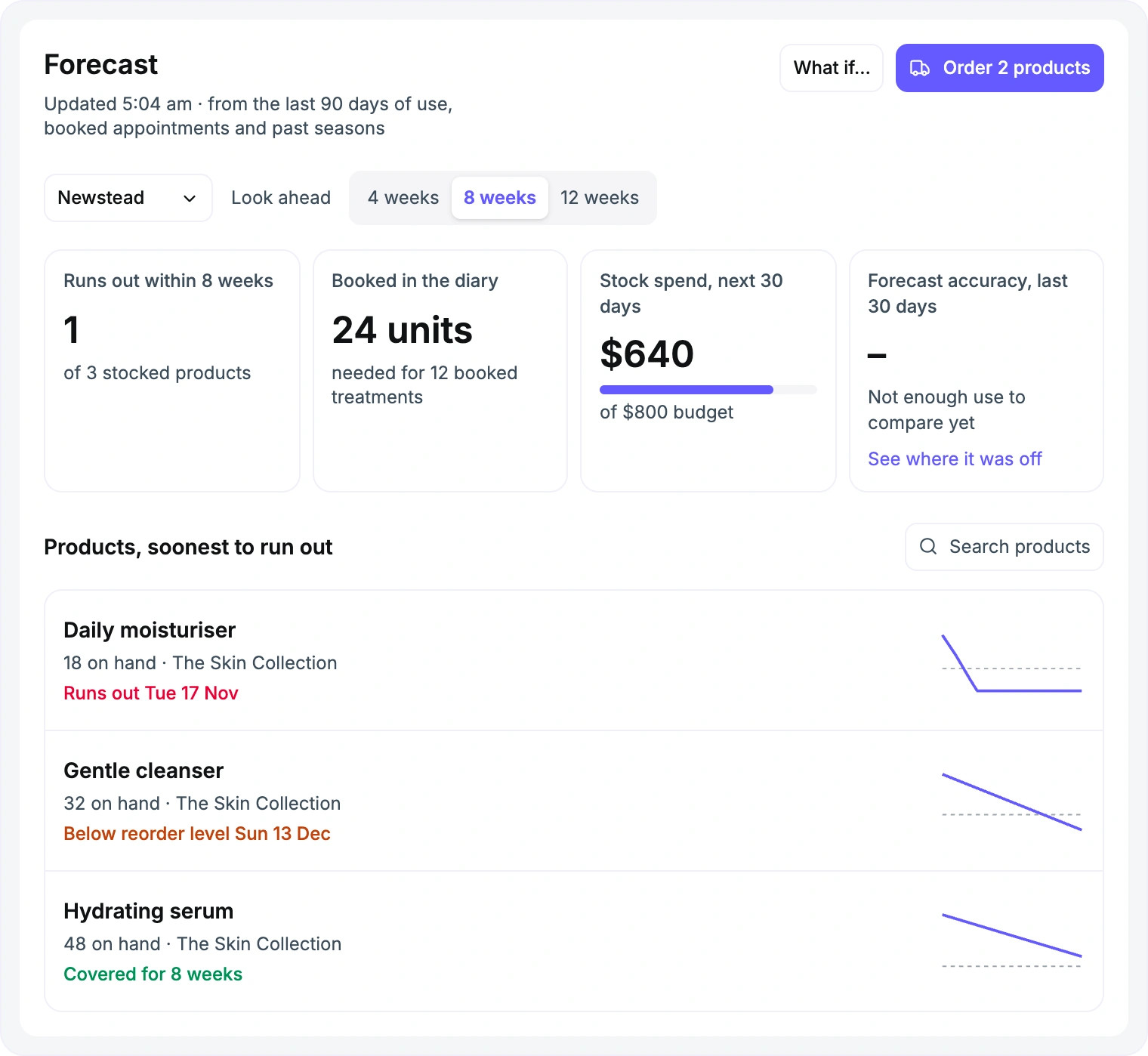
Today’s stock count cannot tell you everything about next month. Our updated forecasting experience brings recorded usage, booked treatments, incoming deliveries and supplier lead times together, so you can plan further ahead.
Choose a four-, eight- or twelve-week outlook for a location. See which products may run out, inspect the drivers behind a projection and review suggested order quantities. Where cost access is available, compare expected stock spend with your monthly budget.
DappleAI provides a plain-language briefing and helps you explore what-if scenarios. Describe a promotion or a busier period, review the proposed assumptions and compare how they would change demand and ordering. Forecast figures are calculated from your clinic’s records; DappleAI explains the outlook and helps prepare scenarios for your review.
The Needs a look view brings unusual usage and relevant supplier updates to your attention. DappleAI can help interpret replies about backorders, changed delivery dates or prices. Review the proposed change before applying it to the order or stock records.
Review the order plan by supplier, check whether another location has stock to transfer and prepare shared order drafts. Drafts remain for your team to review and place. You can also compare forecast use with recorded actual use to see where the outlook needs a closer look.
Plan with more context. Reduce last-minute purchasing and avoid tying up cash in stock you may not need yet.
Explore stock forecasting Learn how to set up with Help Agent
Stock tracking by room
Know what’s where. Room by room.
A healthy clinic-wide total can hide an empty treatment cupboard. You can see where your stock is held, without checking every room or asking around.
Set up named stock areas for rooms or cupboards within each clinic location. See what each holds, record moves between them and run a stocktake for a specific area.
Check what you already have before ordering more. Keep rooms stocked with clearer counts, less searching and fewer interruptions.
Explore stock control Learn how to set up with Help Agent
Purchase-order emails and shared drafts
Start an order here. Pick it up there.
An order can stall when its draft lives on one device or a supplier’s reply sits in a separate inbox. Shared drafts and purchase-order emails keep that work easier to find and continue.
Save a draft for a location and supplier, then resume it on web or iPad. Your team can continue the saved order across devices without rebuilding its product list.
Send the purchase-order PDF from a supported connected clinic mailbox and keep the sent message and supplier replies with the order. Your approval process still applies, and integrated suppliers continue through their existing integration.
Less duplicated work. A clearer record from preparing an order to following up with the supplier.
Explore stock ordering Learn how to set up with Help Agent
Everyday stock controls
Clearer stock records. At the moment you need them.
A stock change without a reason is harder to explain later. A product selected without its available balance can mean another trip to check the shelf. These smaller improvements put useful detail into everyday stock work.
- Adjustment reasons: in Stock settings, create and reorder your clinic’s reasons, retire ones you no longer use and choose whether a reason is required for adjustments. Keep the explanation with the stock history for easier review.
- Stock on hand in product selection: see the location’s recorded balance in supported product and barcode pickers, including invoice product selection, so you can check availability as you work.
- Product stock settings: update product type, uses per item and shared barcodes. When changing uses per item, review whether the change applies to eligible unopened stock or only new stock, with checks around active stocktakes and transfers.
Less detective work later. More informed choices while your team is serving a patient or correcting a record.
Explore stock controls Learn how to set up with Help Agent
Less admin for your team. More reasons to return.
Hear how each visit went. Make the next booking easier. Keep patient information together. Put earned rewards back in view.
Patient feedback
Hear it sooner. Follow through.

A concern that never reaches your team is a missed chance to put things right. You can now collect feedback after a visit and give each response a clear next step.
Send a rating and survey link through your configured automations, with different surveys for different journeys. Patients can share their experience without signing in. Feedback requests respect their marketing consent.
Bring responses into the feedback inbox. Assign an owner, add team notes and track whether you have contacted the patient or resolved the concern. Where your survey offers it, patients can ask your team to get in touch.
Review feedback by visit, location and staff in Patient Feedback reporting. See where the experience is working well and where a closer look could help.
Fewer concerns lost in the handover. More opportunities to put things right and strengthen patient relationships.
Explore patient feedback Learn how to set up with Help Agent
My Packages
Keep the next session within reach.

A simple question about remaining sessions can become another call to reception. You can give patients a clear view of the packages they own and what they have left, alongside packages you offer for purchase.
Signed-in patients can start booking eligible treatments from their packages where online booking is supported. Buying a package and choosing an appointment remain separate steps.
You can also avoid asking for another deposit when the patient has already paid for the treatment. Where prepaid-package deposit handling is enabled, no deposit is required if valid, fully paid packages cover every treatment in the booking at the appointment date. If only part of the booking is covered, your normal deposit rules apply.
Fewer balance enquiries for your team. A clearer path for patients to continue their course of treatment.
Explore packages Learn how to set up with Help Agent
A clearer Inbox
Write it now. Send it when it matters.

Patient follow-up takes more than a quick reply. You need room to write, the right information to hand and a way to send it at the right time.
Start an email or SMS in the new Compose workspace, or expand a reply for more room. Find recent recipients, use message shortcuts and personalise the details. Add files to email, insert eligible patient portal form links into email or SMS, and attach finalised patient letters to email where your clinic has access. Use your clinic brand’s email signature to keep messages consistent.
Send now or schedule an individual email or SMS for later. See pending messages in Scheduled or in the patient’s conversation, and cancel a message while it is still scheduled. Scheduling is available from two minutes to 30 days ahead, using your clinic’s time zone and connected channels.
Keep patient conversations and other mail organised, with folders, unread counts and Open or Completed status. Manage more of your follow-up in one place, with less admin between writing a message and getting back to your day.
Connect your mailbox. See what can be sent.
An admin can open Settings → Marketing & Growth → Inbox channels to connect a supported clinic mailbox and assign its brand or location. Bring its email into Inbox so your team can reply from the clinic’s address alongside other patient conversations.
SMS reach checks also make a blocked send easier to understand. If a mobile number is invalid or its country is outside your clinic’s configured SMS reach, the conversation explains why it cannot be used. Your team can correct the details or choose another suitable channel.
Explore Inbox messaging Learn how to set up with Help Agent
Portal message attachments
The message. The documents. Together.

Chasing files across separate channels adds work and fragments the conversation. You can receive photos and PDFs in the portal thread your team is already managing.
Patients can attach a photo from their camera or library, or upload a PDF. Review it alongside their message, then choose Save to Documents, add a title and file it in their record.
Less switching and chasing. Patient information that is easier to keep together and find again.
Explore patient messaging Learn how to set up with Help Agent
Reward points expiry
Give patients a reason to return.

Forgotten points do little for repeat visits. You can turn an unused balance into a timely reminder of what a patient has earned.
Set points to expire after a chosen period from the date they are earned, or after a period without points activity. Show upcoming expiry and use configured journeys to remind patients of their balance and expiry date.
By default, when you enable expiry, existing points receive a full expiry period starting from that date.
A clear balance. A clear deadline. Another reason to book with your clinic.
Explore rewards Learn how to set up with Help Agent
See what works. Make the next message better.
See what your automations are achieving. Test new approaches. Plan your broadcasts and keep every follow-up relevant.
Automation dashboard and suggestions
Know what’s working. See what needs attention.

An automation can be running without giving you a clear picture of its results. The refreshed dashboard brings performance and next steps together, so you can spend less time checking journeys one by one.
See running automations, journeys started and patients messaged. A goal is the outcome you want a journey to achieve, such as a booking or purchase. Track how many journeys reach that goal and the value recorded against it. Compare with the previous period, check message volume and delivery, and open the automations that need attention. Each automation also has its own summary for a closer look.
With DappleAI, get a plain-language summary and suggestions based on your saved journeys and results. Review opportunities to clarify a goal, space out messages or check whether a patient has already booked before sending another reminder. Open the relevant step or apply a supported suggestion, with your team deciding what changes.
Less guesswork about where to spend your time. A clearer way to improve follow-up and support more bookings from the journeys you already run.
Explore intelligent automations Learn how to set up with Help Agent
Automation split testing
Try a different approach. See what works.

Choosing a message or follow-up sequence can come down to instinct. You can now compare alternatives inside your automated journeys and use the results to guide the next change.
Test different email, SMS or portal messages, or split a journey into different paths. For example, compare your usual rebooking reminder with a shorter version and measure which leads to more bookings. Choose how journeys are divided between the versions and set the outcome you want to measure.
Choose the version you want to keep. If you enable automatic selection, future journeys switch to the better-performing version once your chosen conditions for deciding a winner are met.
Learn from real responses. Keep improving the messages and journeys that bring patients back.
Explore journey testing Learn how to set up with Help Agent
Journey preview
See the journey. Before a patient does.
Checking one message at a time can miss what the whole follow-up feels like. Journey preview lets you walk through a saved journey or your unsaved edits with a selected patient and trigger.
Read the personalised messages, follow waiting periods and conditions, and explore alternative paths or split-test versions. See how the sequence fits together before you save your changes.
The preview does not send messages or start a real patient journey. Catch missing details, awkward timing and the wrong branch while there is still time to improve them.
Explore automated journeys Learn how to set up with Help Agent
Scheduled broadcasts
Ready now. Sent when it matters.

A campaign should not depend on someone being at their desk at the right moment. You can prepare a broadcast ahead of time and schedule it for the date and time you choose.
Schedule up to 30 days ahead using your clinic’s time zone. See the scheduled time and status in the broadcasts list, and cancel a pending send before sending begins if plans change.
Plan launches, seasonal offers and clinic updates around your calendar. Give your team one less deadline to manage on the day.
Explore broadcasts Learn how to set up with Help Agent
Journey variables
More personal. Less to build.
Changing a word or follow-up link should not mean duplicating journey branches. Journey variables let you define a value once and reuse it in later messages. Set the rules for choosing that value on the campaign trigger step, with a default for patients who do not match a rule.
For example, create a variable for a follow-up link. Your rules select the appropriate link for each patient, and you can reuse that variable in both the first message and a later reminder. Keep the link rules in one place instead of building separate branches for each link.
Keep your follow-up personal and your journeys easier to maintain. Fewer branches to build, check and update.
Explore automated journeys Learn how to set up with Help Agent
Smart send channel order
Your channels. In your order.
Your preferred channel may not be available for every patient, depending on their contact details and consent. You can set the order in which Smart send tries channels, so your team does not have to make that choice message by message.
Choose and reorder channels for each journey step or broadcast. Smart send sends one message through the first channel in your list that the patient can receive, based on their contact details, consent and your channel settings.
Your preferred order. The first eligible channel. One message, without repeating it across every channel.
Explore automated messages Learn how to set up with Help Agent
Promotion code used condition
A redeemed offer. A different next step.
A reminder to use an offer is less helpful after a patient has already used it. You can now branch a journey according to whether that patient has used the promotion code being checked.
Add a Promotion code used condition. Check a code created earlier in the journey or an existing clinic code, then choose the next path for each outcome. For an existing code, choose whether to count use since the journey started or at any time. Continue a relevant reminder when the code is unused, or move to a different follow-up after use.
Keep the conversation relevant. Avoid sending the same nudge after it has done its job.
Explore promotion management Learn how to set up with Help Agent
Ready for your next clinic day
Start with one opportunity. Refill a cancelled slot. Bring a frequently used SOP into Clinical Library. Follow up on patient feedback.
Small changes to the day. More room for the work that matters.
Choose a feature and ask Help Agent how to set it up. Open it from the sparkle icon in the DappleOS header, or start here:
New to DappleOS? Book a personalised demo to see these workflows in the context of your clinic.
A small reliability improvement
If you use a 32-bit browser on 64-bit Windows, DappleOS now recommends switching to a 64-bit browser. This helps your team identify an older browser setup before it limits their experience.
Availability and setup notes
Feature availability depends on your clinic’s plan, permissions and rollout. Waiting List Automation, Clinical Library (including AI import and guidance in notes) and Incident Register are enabled separately for eligible clinics. Contact your DappleOS team if these are not yet available in your clinic.
Stock forecasting requires Stock and DappleAI. Forecasts depend on your recorded stock, usage, treatment setup and delivery information; they are estimates for your team to review. Cost figures and ordering actions follow your access permissions.
Mailbox connections depend on provider support and configuration. Tracking and conversion measurement depend on your installed integrations and consent settings. Your clinic remains responsible for its privacy notices and consent requirements.